

Create service principal in Microsoft Entra ID
Generate credentials (tenant ID, client ID, client secret)
Create the Entra Service Principal
Register a New Application
Navigate to Entra Admin Center
Go to the Microsoft Entra admin center at https://entra.microsoft.com and sign in with your Global Administrator or Cloud Application Administrator account.
Access App Registrations
In the left sidebar, select Entra ID, then under Manage, select App registrations.
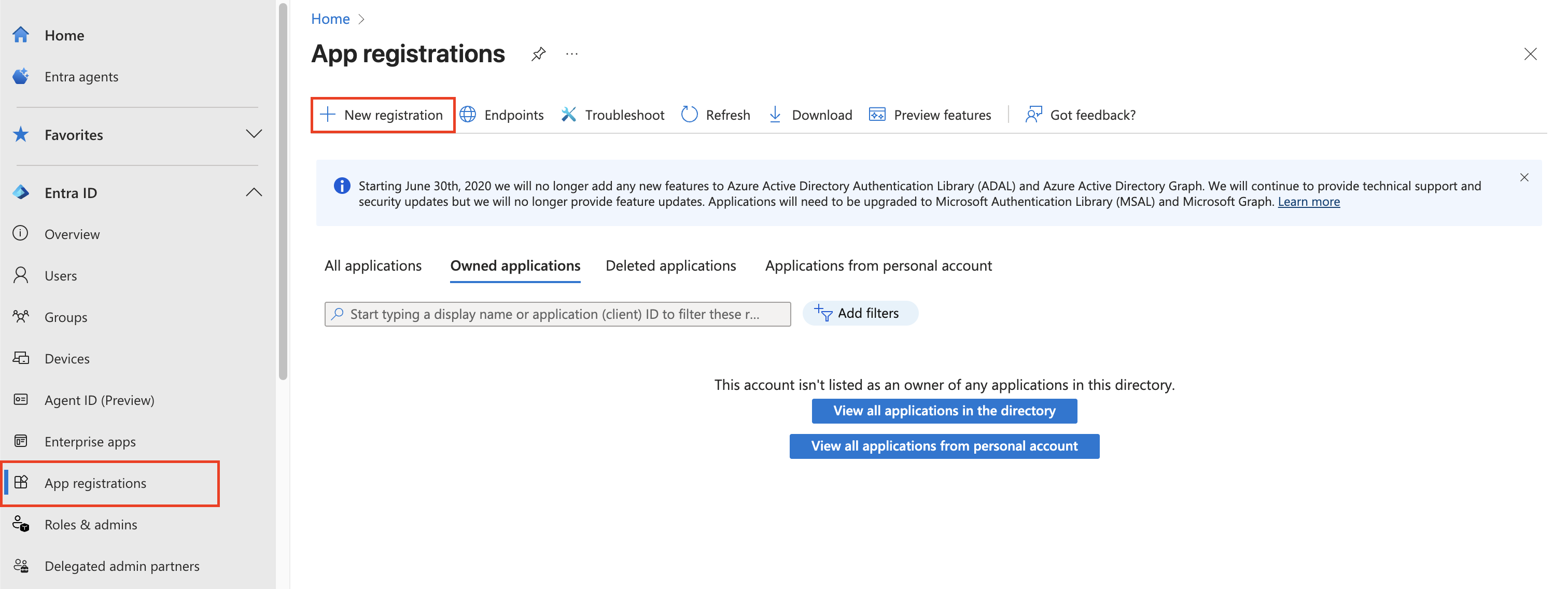
Configure the App Registration
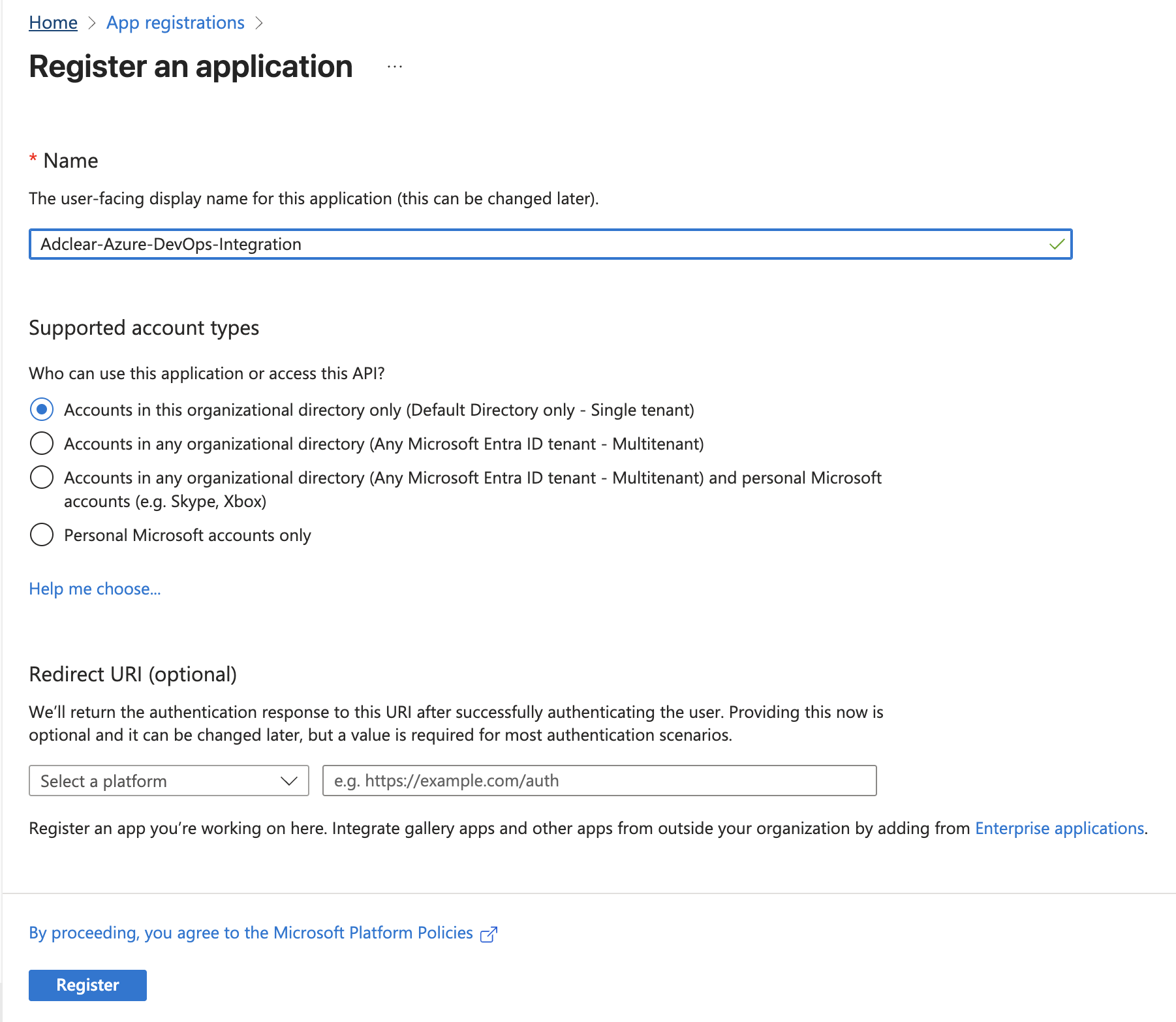
On the registration form, fill in the following details:| Field | Value | Notes |
|---|---|---|
| Name | Adclear-Azure-DevOps-Integration | Choose a descriptive name for your app |
| Supported account types | Accounts in this organizational directory only | Single-tenant (recommended for security) |
| Redirect URI | Leave blank | Not needed for service principal authentication |
Collect Application Credentials
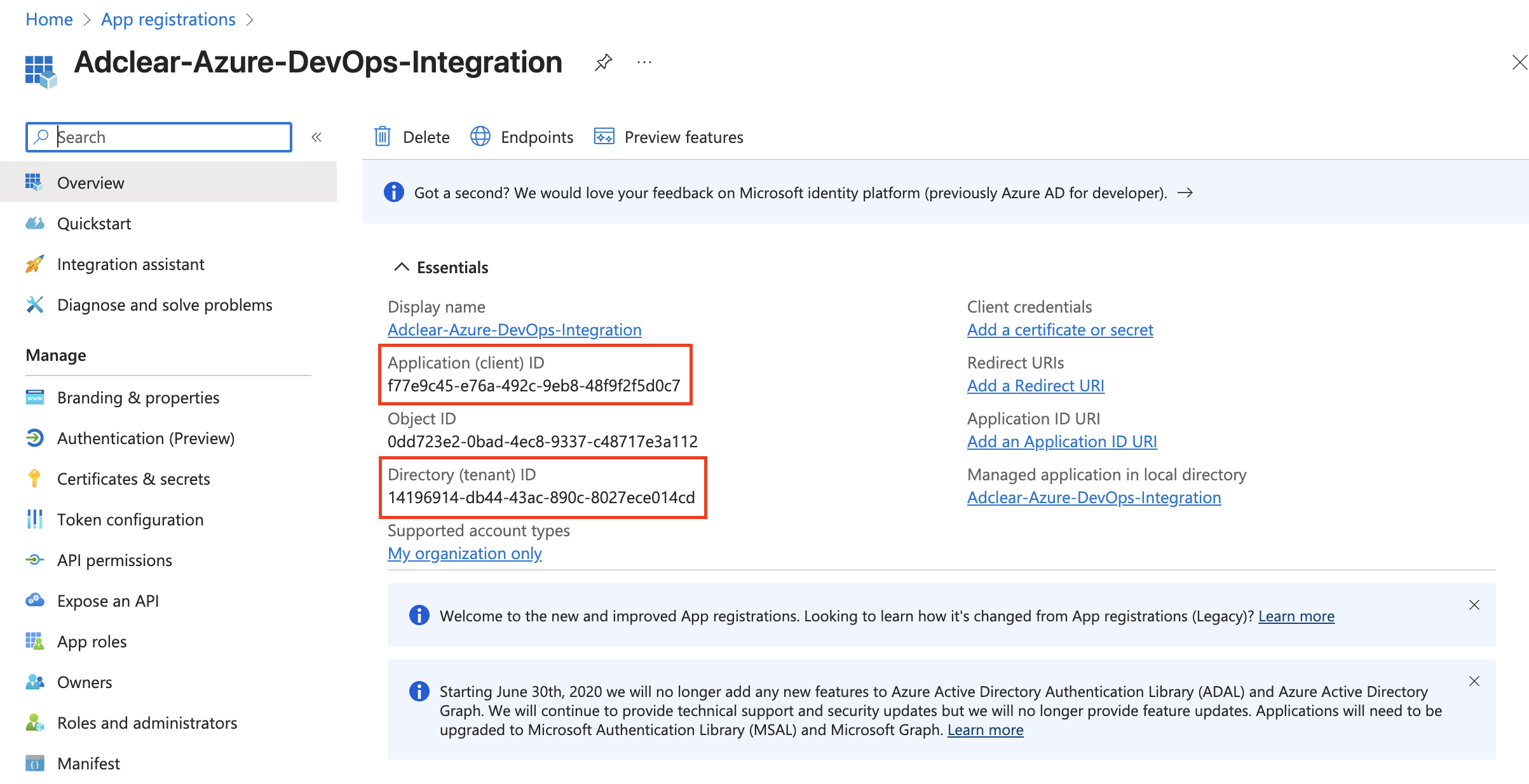
You now have your service principal. Collect these values – you’ll need them to configure the Adclear integration:Copy Application IDs
On the app’s overview page, copy and save the following:
- Application (client) ID – This is your
client_id - Directory (tenant) ID – This is your
tenant_id
Create a Client Secret
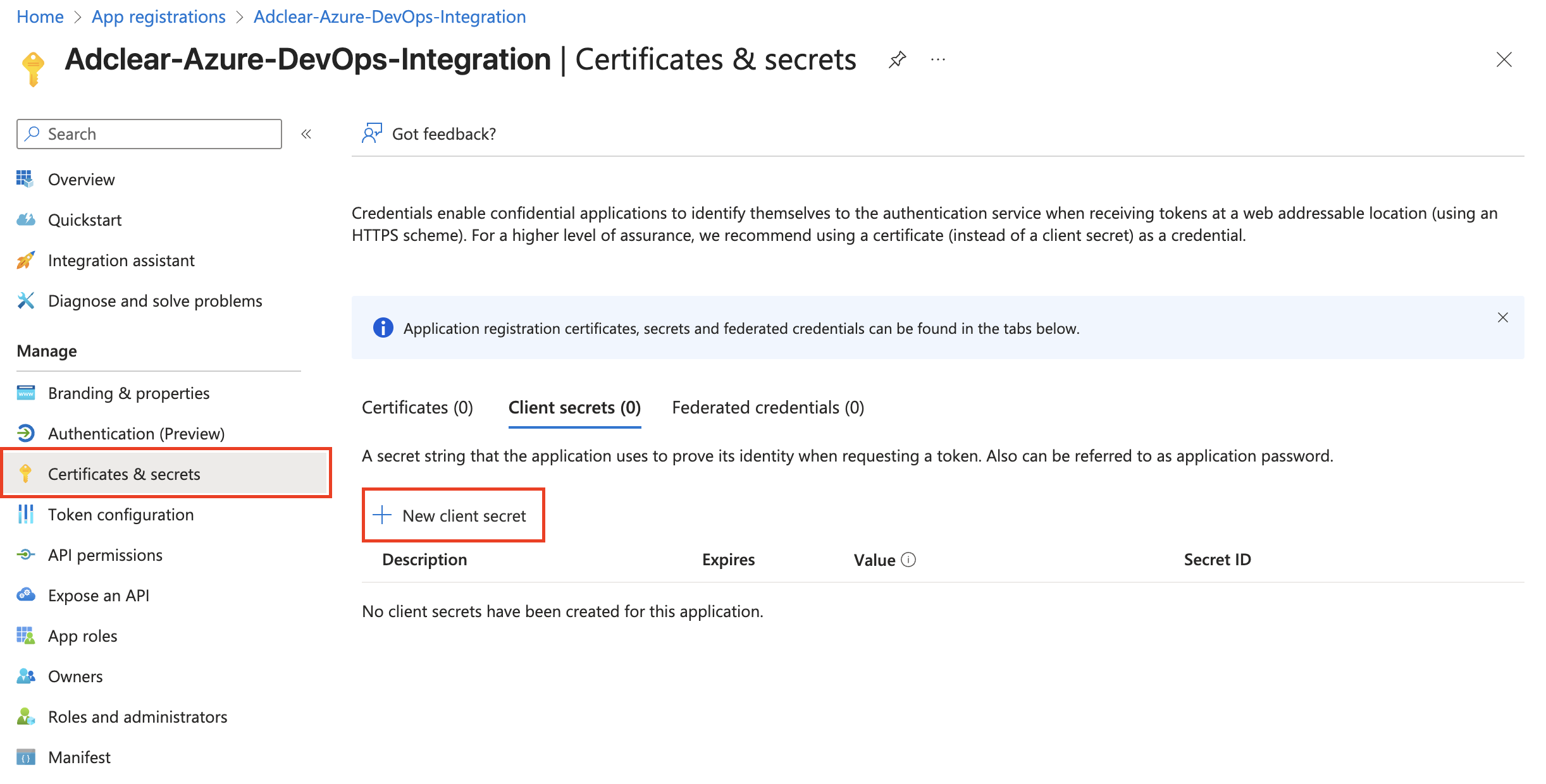
Navigate to Certificates & Secrets
In the left sidebar under your app registration, click Certificates & secrets.
Configure Secret Details
Fill in the secret details:Click Add.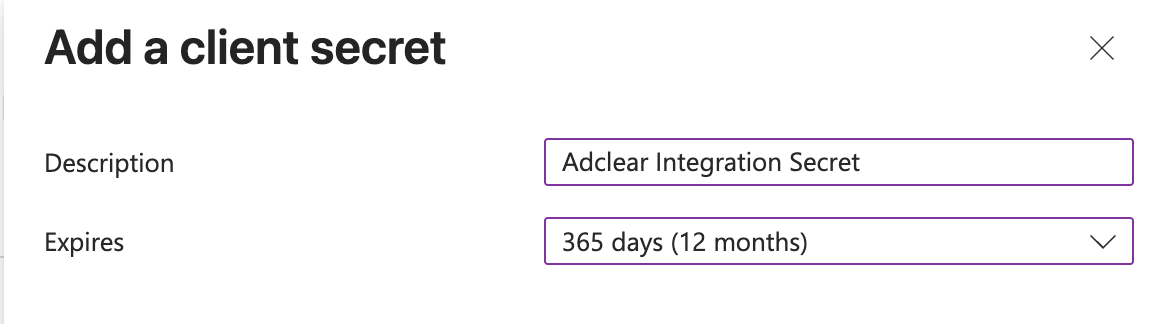
- Description:
Adclear Integration Secret(or similar) - Expires: Select an appropriate expiration (e.g., 12 months)
Shorter expiration is more secure but requires regular rotation.
Grant Access in Azure DevOps
Add Service Principal to Your Organization
Navigate to Organization Settings
Go to your Azure DevOps organization: 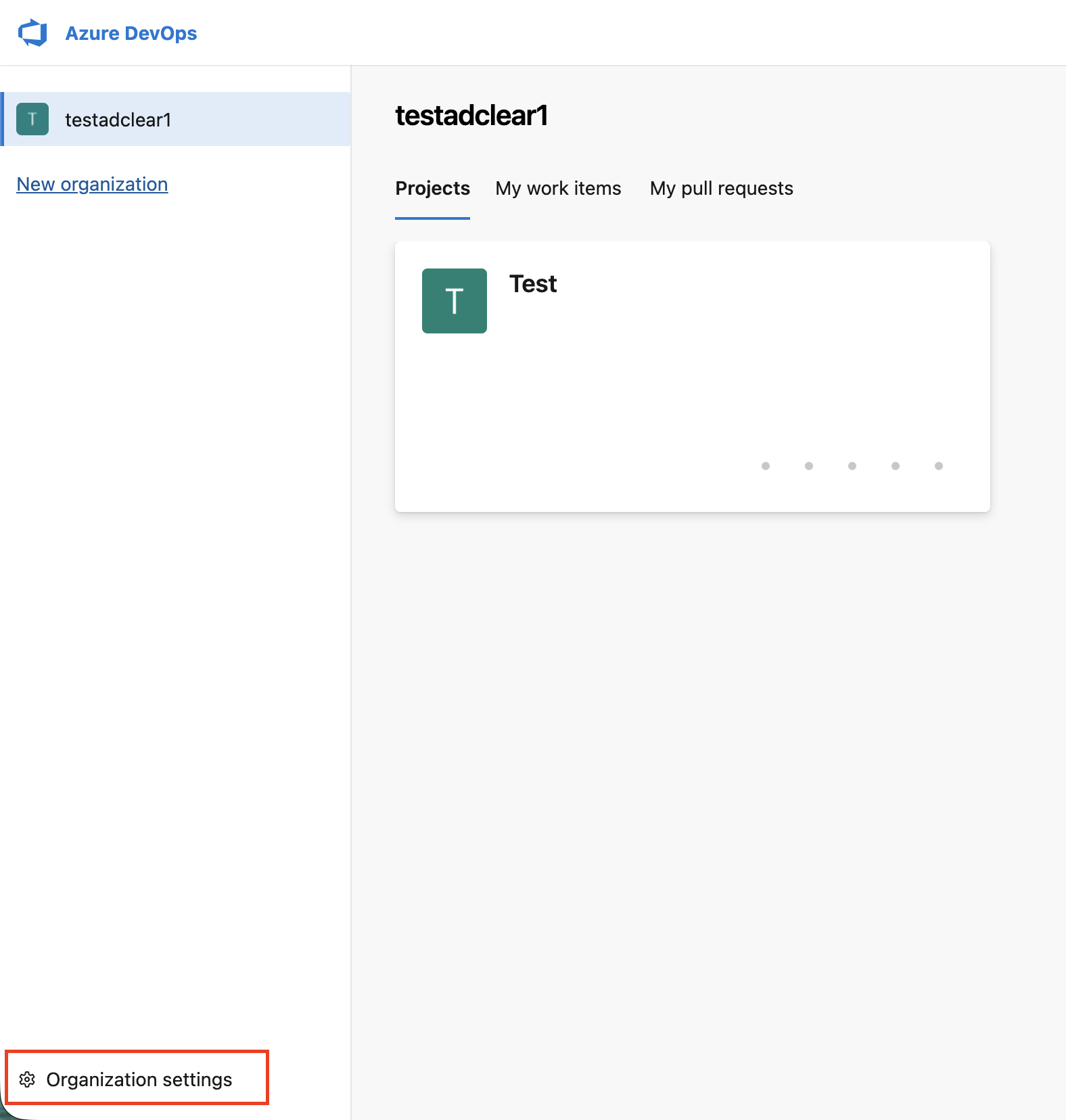
https://dev.azure.com/{your-organization} and click Organization settings (bottom-left corner).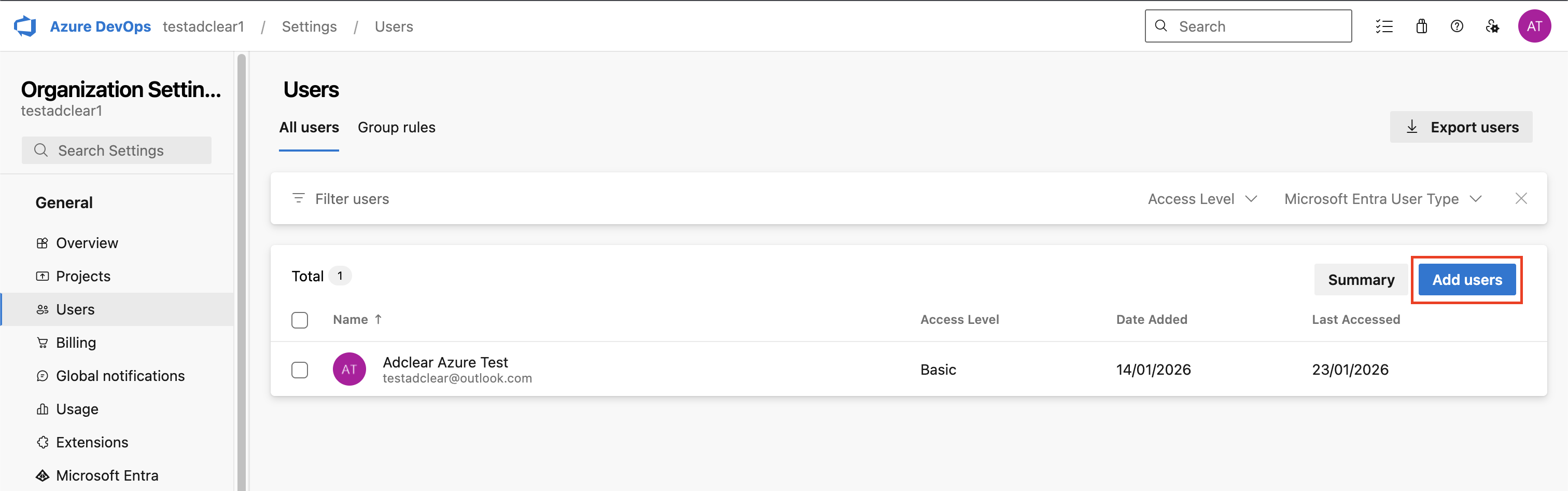
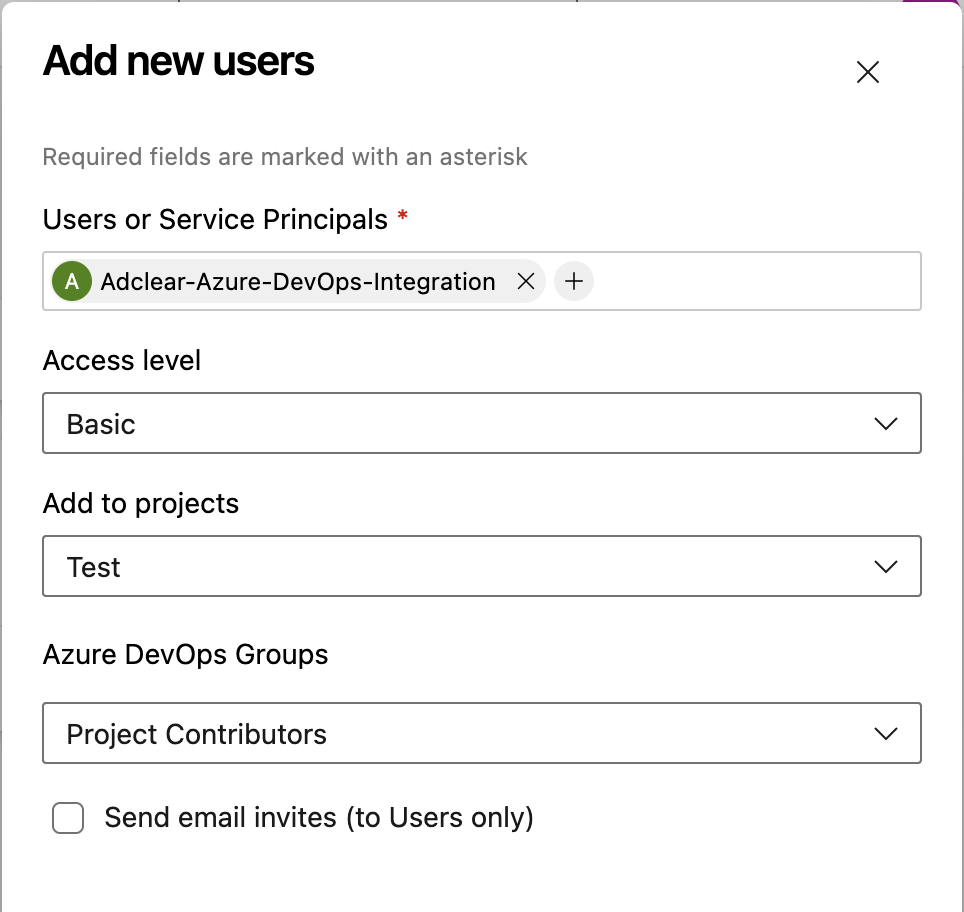
Configure Service Principal Access
In the Add users dialog, fill in:| Field | Value |
|---|---|
| Users or Service Principals | Search for and select your service principal by its application name (e.g., Adclear-Azure-DevOps-Integration) |
| Access level | Basic (required for work item read/write) |
| Add to projects | Select all projects where Adclear needs access, or add them later |
| Azure DevOps Groups | Project Contributors (default; recommended for most use cases) |
Add Service Principal to Individual Projects
If you didn’t add the service principal to projects earlier, or need to add it to additional projects:Navigate to Project Settings
Navigate to the specific Project and click Project settings (bottom-left).
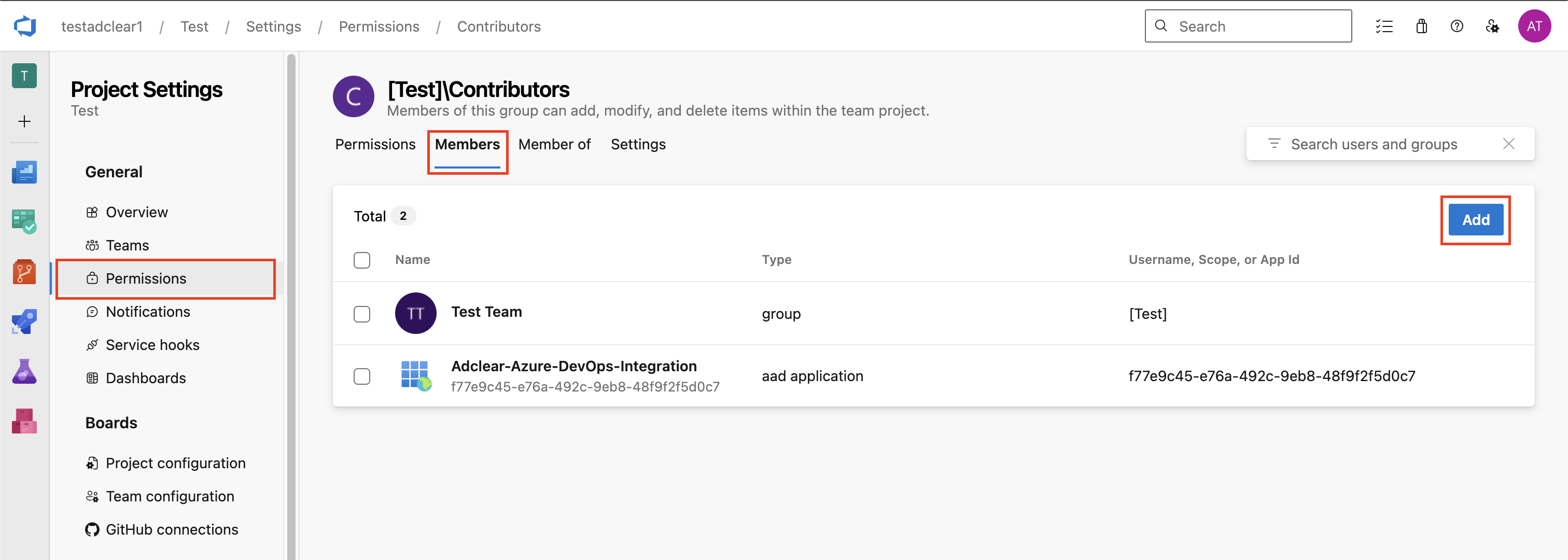
Add to Contributors Group
Select the Contributors group (or create a custom group for Adclear), click the Members tab, then click Add.
Complete the Integration
Share Credentials with Adclear
Once you’ve created the service principal and granted access, securely share the following information with the Adclear team:| Information | Where to Find It |
|---|---|
| Tenant ID | Entra app overview page |
| Client ID | Entra app overview page |
| Client Secret | The secret value you saved |
| Organization Name | Your Azure DevOps organization (from https://dev.azure.com/{organization}) |
| Project Name | The project(s) where you granted access |
Configure Status Mapping
The Adclear team will work with you to map your Azure DevOps work item statuses to Adclear promotion statuses. Please provide a list of your work item statuses (e.g., New, Active, Resolved, Closed) so we can configure the correct mappings.What the Integration Does
Once configured, the Azure DevOps integration enables the following:| Feature | Description |
|---|---|
| Automatic ticket creation | When a promotion is created in Adclear, a corresponding work item is created in Azure DevOps |
| Status synchronisation | When a promotion’s status changes in Adclear, the linked work item status is updated |
| Version comments | When a new version of a promotion is uploaded, a comment with a link is added to the work item |
| Ticket linking | The linked Azure DevOps work item URL is displayed in Adclear for easy access |
Troubleshooting
Unauthorized or Access Denied Error
Unauthorized or Access Denied Error
Invalid Credentials Error
Invalid Credentials Error
Cause: Incorrect client ID, secret, or tenant ID values.Solution:
- Re-verify all credentials from Step 1.3 and 1.4
- Ensure the client secret hasn’t expired (check expiration date in Entra)
- If expired, create a new secret and share the updated value with Adclear
Service Principal Cannot Create Work Items
Service Principal Cannot Create Work Items
Cause: Service principal is not a member of the Contributors group.Solution:
- Go to Project settings → Permissions
- Select the Contributors group
- Click Members and verify the service principal is listed
- If not, add it following Step 2.3
Service Principal Doesn't Appear in User Search
Service Principal Doesn't Appear in User Search
Cause: Application not yet registered as a service principal in Azure DevOps tenant.Solution:
- Go to Organization settings → Azure Active Directory
- Verify the organization is connected to your Entra tenant
- Try searching by the full application name (case-sensitive)
- If still not found, you may need to use the Object ID instead of the application name
Security Best Practices
Rotate Secrets Regularly
Set a calendar reminder to rotate your client secret every 6–12 months before expiration. Share the new secret with Adclear when rotated.
Limit Project Scope
Only grant the service principal access to projects it actually needs.
Monitor Activity
Periodically review Azure DevOps audit logs to verify the service principal’s activity.
Audit Permissions
Regularly review and remove unnecessary permissions.
Additional Resources
Microsoft Entra ID Documentation
Official Microsoft Entra ID documentation
Azure DevOps API Documentation
REST API reference for Azure DevOps
Service Principal Security
Best practices for app registration security
Glossary
| Term | Definition |
|---|---|
| Service Principal | An identity for an application that allows it to authenticate with Azure services without user interaction |
| Tenant ID | Unique identifier for your Microsoft Entra directory |
| Client ID | Unique identifier for your registered application |
| Client Secret | Password/credential used by the application to prove its identity to Azure |
| Access Level | Determines what features a user/principal can access (e.g., Stakeholder, Basic, Basic + Test) |
| Contributor | Default Azure DevOps security group with permissions to contribute to projects (create/edit work items, etc.) |
| OAuth 2.0 | Open authorization standard used for secure, token-based authentication |